Translations
New or existing translations are managed and administered in the “Translations” module, located in the “Languages” group of the administration area.
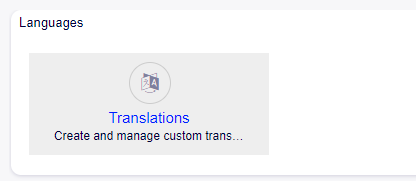
Widget Languages
By clicking on the Translations item, the user displays the subaction “Overview”.
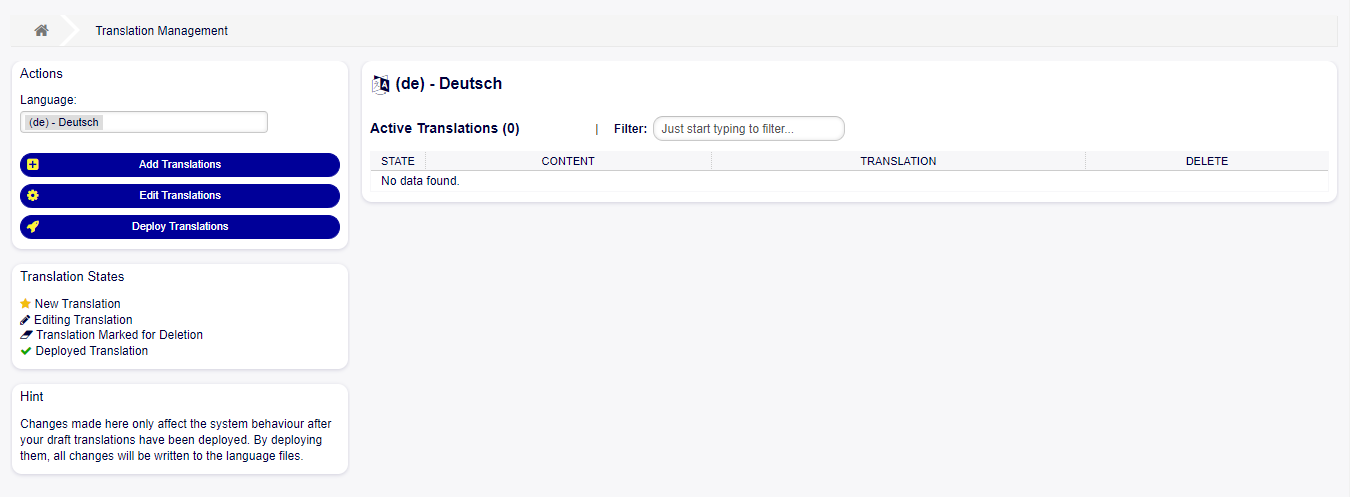
Overview Module Translations
It contains the following elements:
- Language Dropdown
To select the working language (By default the language of the User in session is selected).
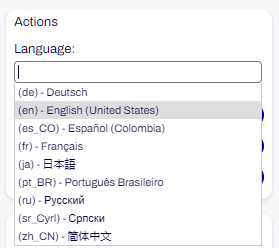
Actions - Languages
- Add Translation
To add a new translation in the system.
- Edit Translations
To modify an existing translation.
- Deploy Translations
To display the translations in the system.
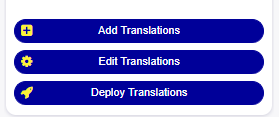
Buttons Translations
- Active Translations
Table with all translations displayed.
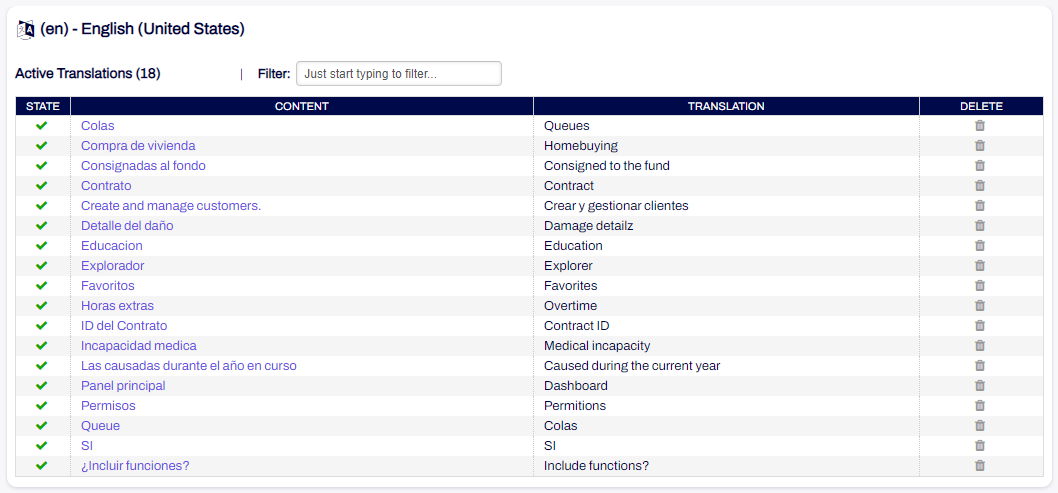
Table Active Translations
- Filter
To filter the translation table.
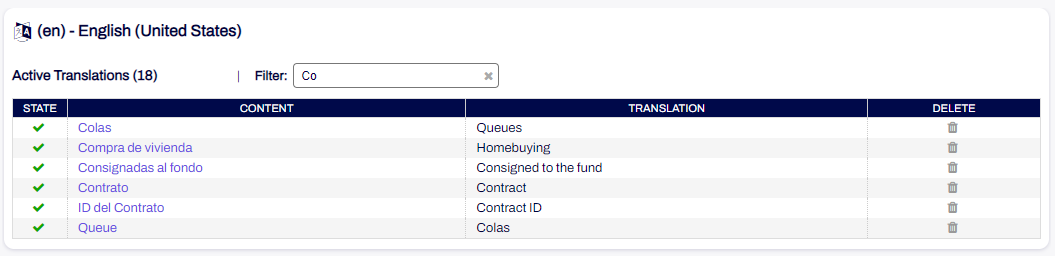
Filter Active Translations
- Translation States
Possible translation statuses.
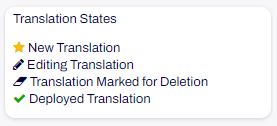
Widget States Translations
New translation: New translations pending to be deployed.
Editing Translation: Edited translations pending deployment.
Translation Marked for Deletion: Translations marked for deletion pending deployment.
Deployed Translation: Active translations that have already been deployed.
Display States Translations
- Hint
This widget contains a short explanatory text about the module.
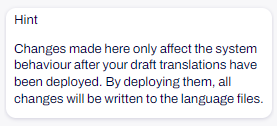
Widget Hint
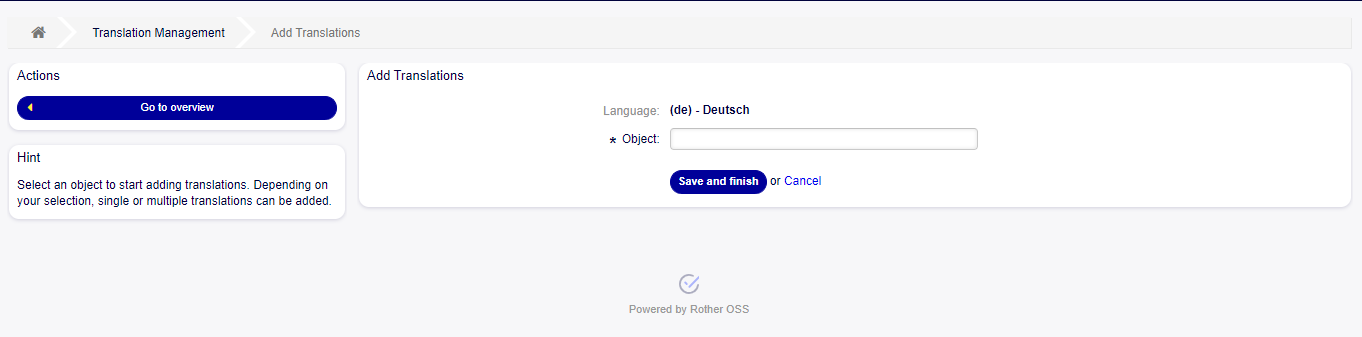
Add translation screen
This function allows you to add a new translation to OTOBO and allows you to select each of the translatable data elements in the system.
Overview Add Translation
When entering the section to add a new translation, a new screen is displayed with the following elements:
- Actions
This widget contains the “Go to Overview” button to return to the main screen of the module.
Widget actions Add Translation
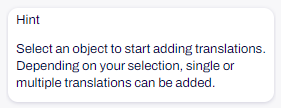
- Hint
This widget contains a short explanatory text about the section the user is in.
Widget Hint Add Translation
- Language
Informative label of the language where the translation will be created.
- Object
Selectable options with element to translate: Dynamic field content, Dynamic field labels, General label, Priorities, Queue, Services, SLA, Templates, Ticket status, Ticket types.

Object field
- Dynamic Field List
This field is displayed only when “Dynamic Field” is selected in the “Object” field. It contains the names of the dynamic fields.

Dynamic Field List
- Content
This text field contains the tags to translate.

Content Field
- Translation
Text field or table depending on the selected option, where the translation is entered.

Translation Field
- Button Save and Finish
To save the translation and finish.
- Cancel button
To cancel the action.

Selectable Options
- Dynamic Field Contents
Displays all existing dynamic fields and a dropdown field with values to translate is chosen
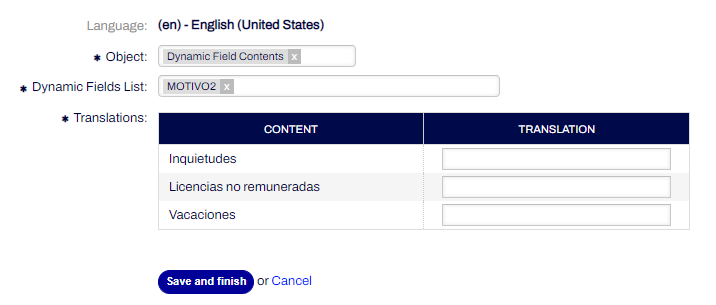
Table for translation - Dynamic Field Content
- Dynamic Field Labels
Displays all existing dynamic fields in the system and a field is chosen to translate the label
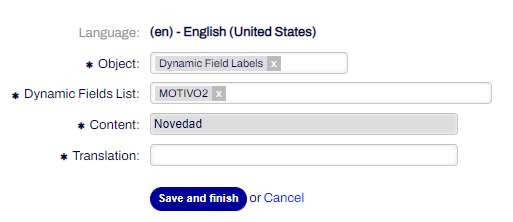
Table for translation - Dynamic Field Labels
- General Label
Allows to translate any existing label in the system.
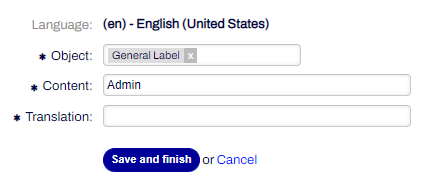
Fields for translation - General labes
- Priorities
Allows to translate the existing priorities in the system.
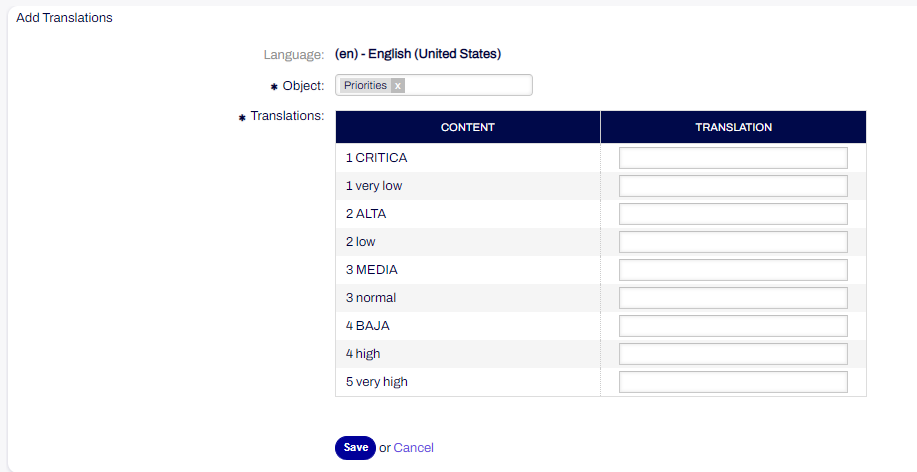
Fields for translation - Priorities
- Queues
Allows to translate all existing queues.
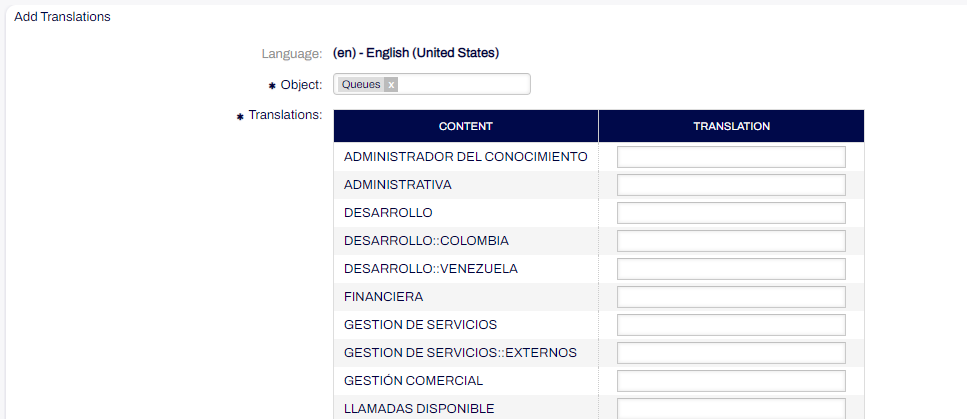
Fields for translation - Queues
- Services
Allows translation of all services.
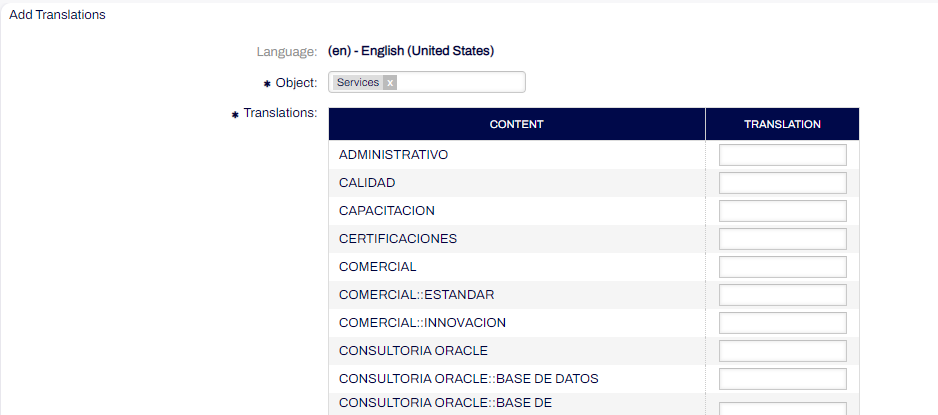
Fields for translation - Services
- SLAs
Allows translation of all SLAs.
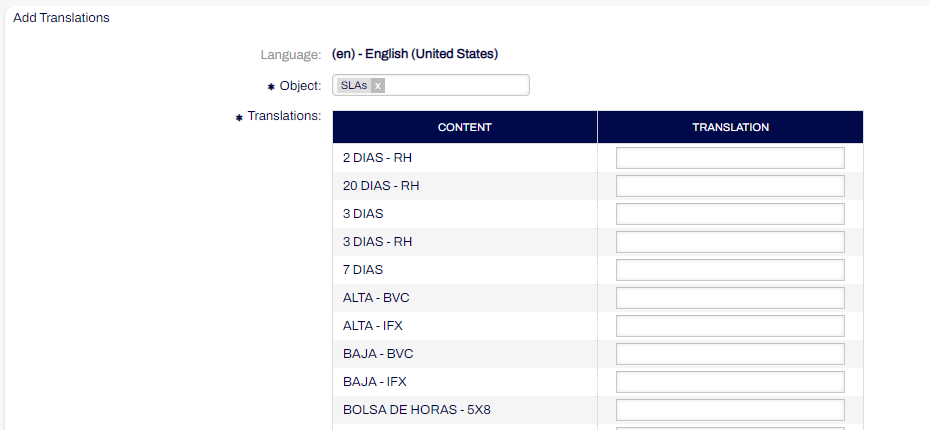
Fields for translation - SLAs
- Templates
Allows you to translate templates.
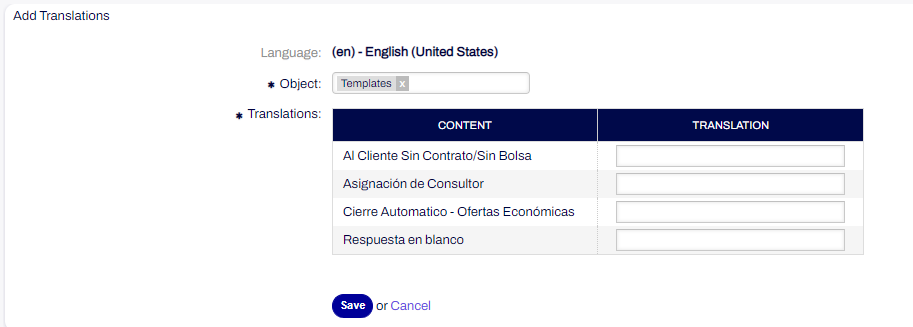
Fields for translation - Templates
- Tickets States
Allows translation of ticket statuses.
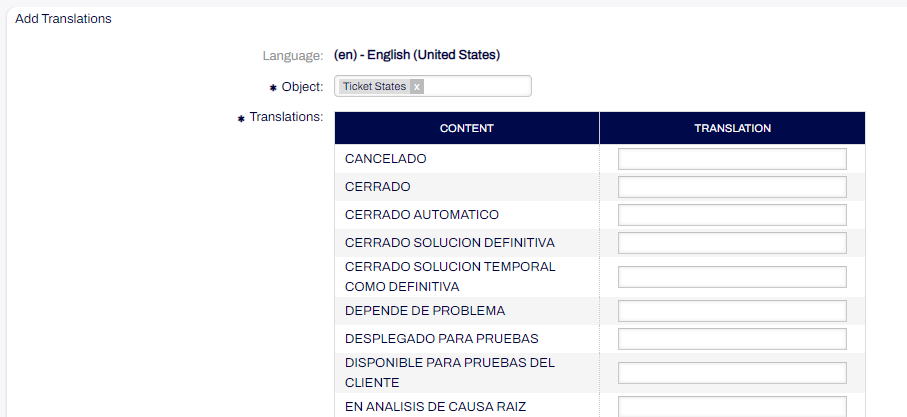
Fields for translation - Ticket States
- Tickets Types
Allows translation of ticket types.
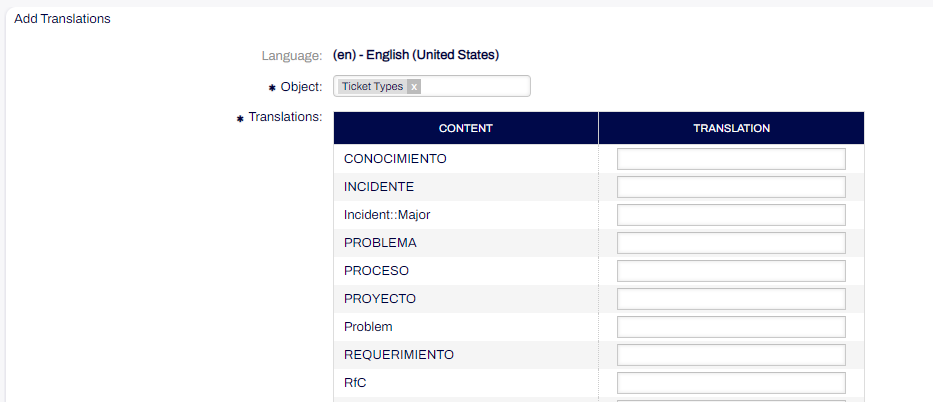
Fields for translation - Ticket Types
Edit Translation
This section allows you to edit the translations displayed in the module. When entering the section to edit translations a new screen is displayed with the following elements:
- Translations
Translation table with
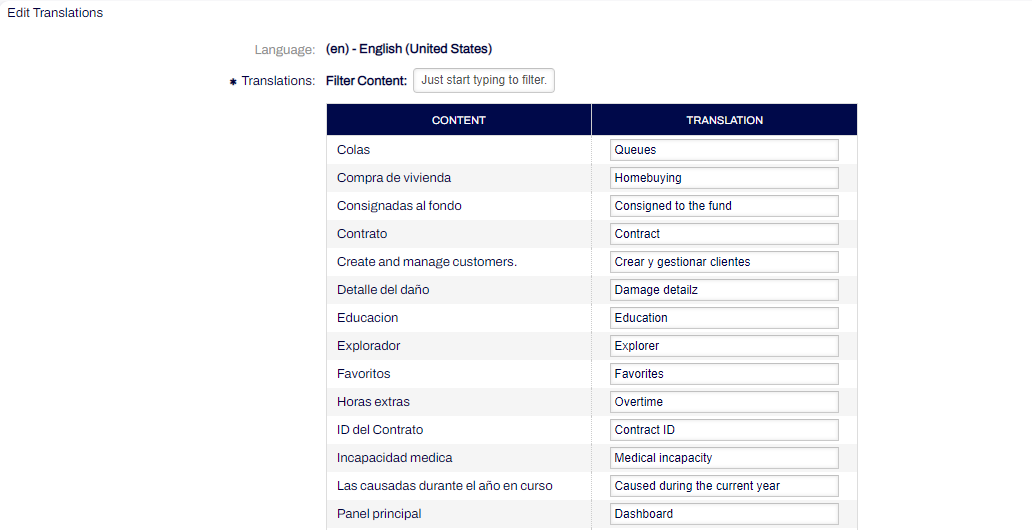
List of translations for editing
Filter Content: Translation filtering field.
Content: content column with all the translated tags in the module.
Translation: input column with all translations displayed with the possibility to edit and add a new translation.
Deploy Translation
This function allows you to deploy translations, changing their status to deployed and adding them to the database or deleting them from the module when they are marked for deletion.
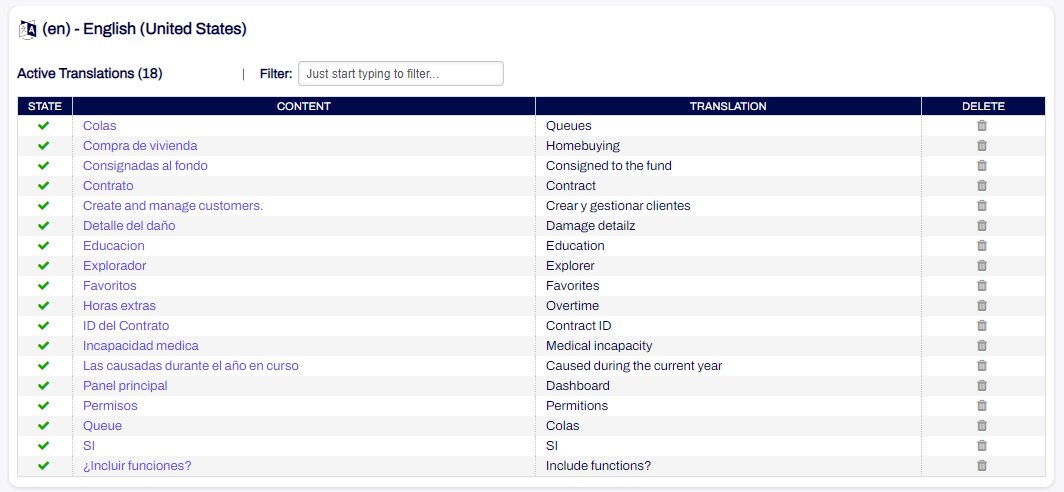
Table of displayed translations.
Import/Export Translations
This function allows you to import and/or export files with translations using templates for the different languages configured. When going to the Import/Export module, a new section “Translations” is displayed, a table with the existing templates for importing files.
- Add Template
When adding a new template, the new “Translations” option is displayed in the “Object” input.
- Format
Allows you to choose the CSV file format.
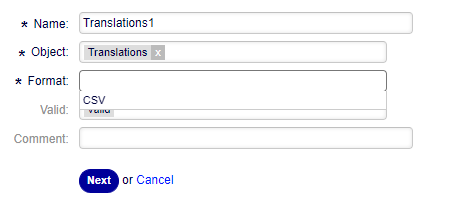
Fields Add template.
In the second step, the following fields are displayed:
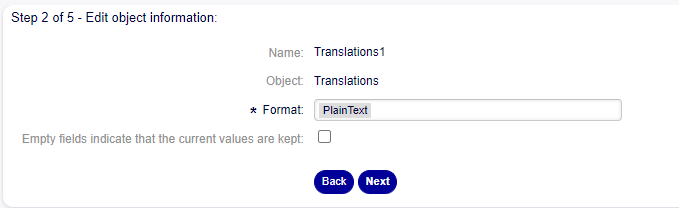
Fields Step 2.
- Format
Plain text format is selected.
- Checkbox
To indicate whether empty fields keep the current values.
In the third step the following new fields are displayed:
- Column Separator
Allows you to choose the column separator between Colon (:), Comma(,), Period(.), Semicolon(;), Tabulator (TAB).
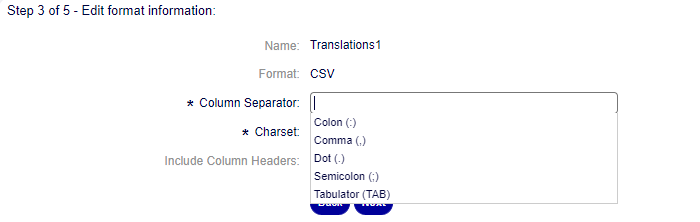
Field Column separator Step 3.
- Charset
The default character encoding is unmodifiable and according to the previously selected language.
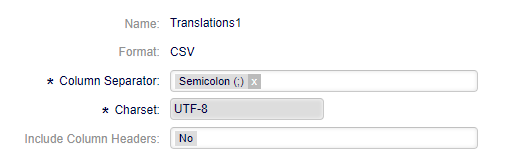
Field Charset Step 3.
- Include Column Headers
Allows you to choose between yes/no if the option is whether the file should have the column headers in the file to be imported.
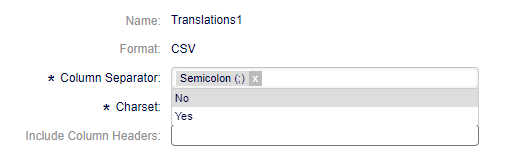
Field Include Column Headers Step 3.
In the fourth step, the order of the file columns is defined:

Information mapping table.
- Add Mapping Element
To add the sections or columns of the file.
- Key
Source string: Text string to be translated. Translation English: Language in which the translation will be done.
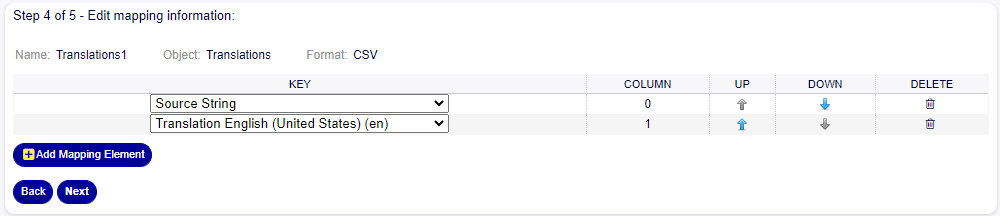
Mapped information.
In the fifth step you define whether you want to export untranslated strings of specific objects:
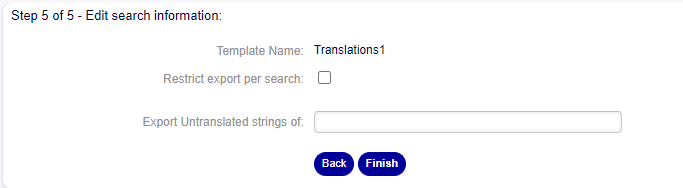
Search information.
- Restrict export per search
allows you to choose whether you want to restrict the export by searching for specific options.
- Export Untranslated strings of
allows you to choose the option from which the untranslated strings will be exported.
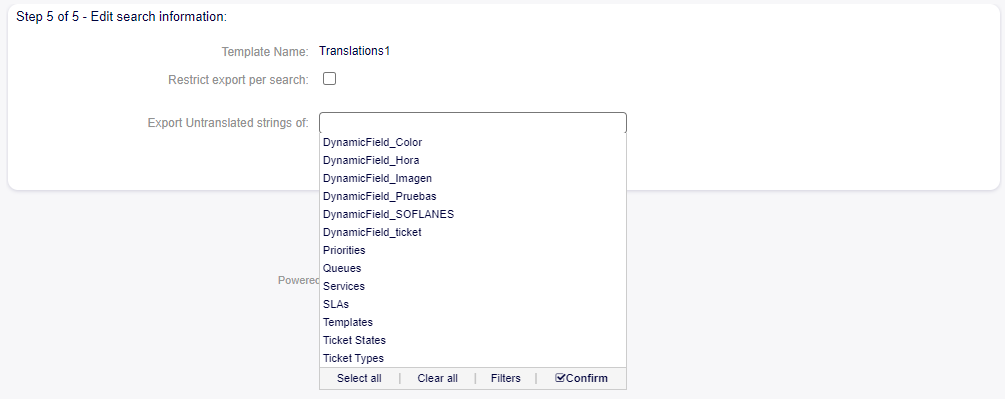
Field Export Untraslated.
Ticket Information (Translation)
Attributes of the ticket such as Queues and Services that are translated using the translation module will be visible in the selection tree views of the fields.
Services in English
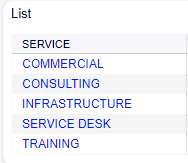
List Services.
Services translated to Spanish in tree view
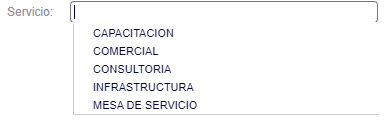
List Services translated to Spanish.
Queues in English
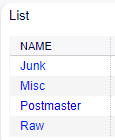
List Queues.
Queues translated to Spanish in tree view
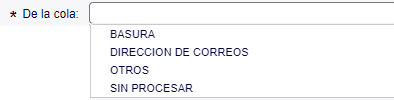
List Queues translated to Spanish.