Roles
Use this screen to add roles to the system. A fresh OTOBO installation contains no roles by default. The role management screen is available in the Roles module of the Users, Groups & Roles group.
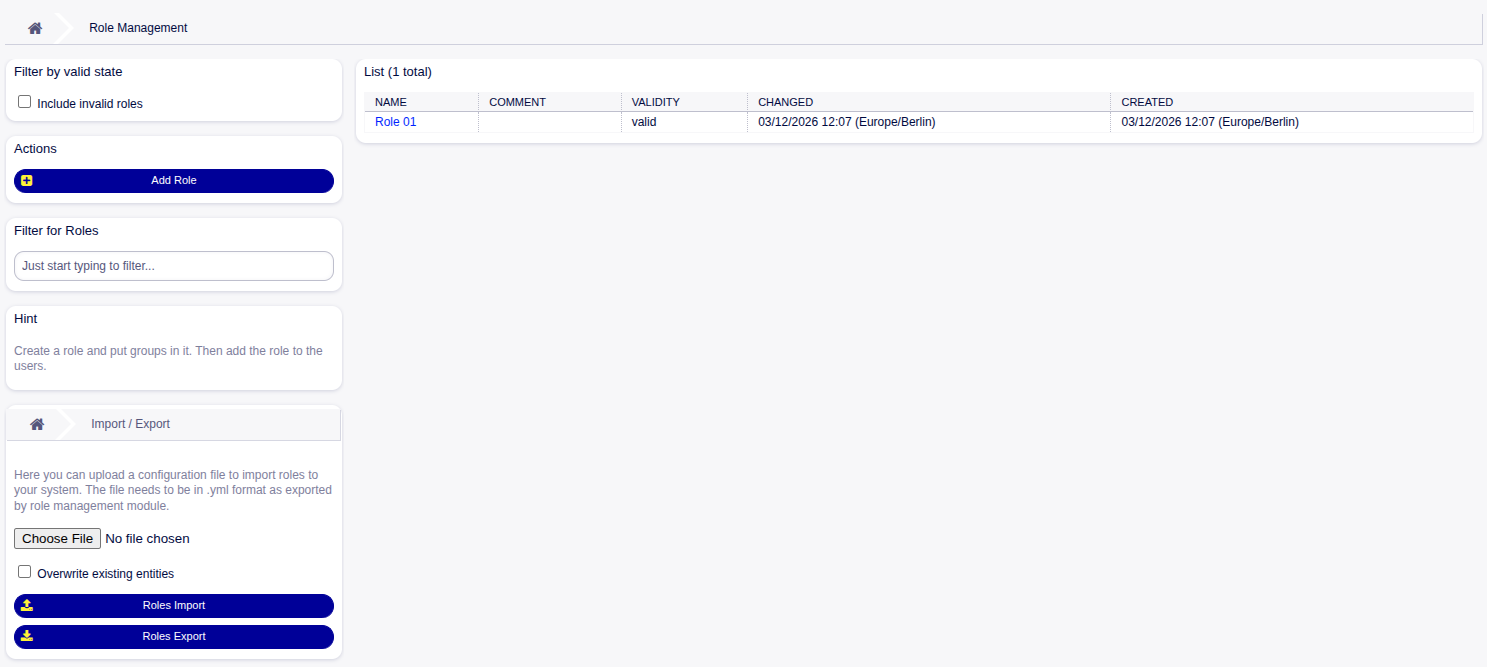
Role Management Screen
Manage Roles
To add a role:
Click on the Add Role button in the left sidebar.
Fill in the required fields.
Click on the Save button.
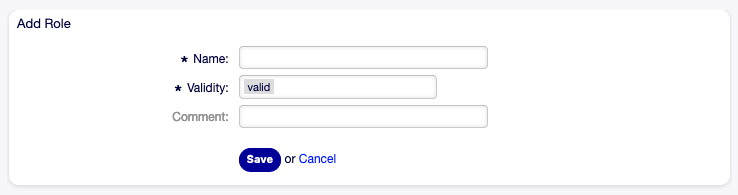
Add Role Screen
Warning
Roles can not be deleted from the system. They can only be deactivated by setting the Validity option to invalid or invalid-temporarily.
To edit a role:
Click on a role in the list of roles.
Modify the fields.
Click on the Save or Save and finish button.
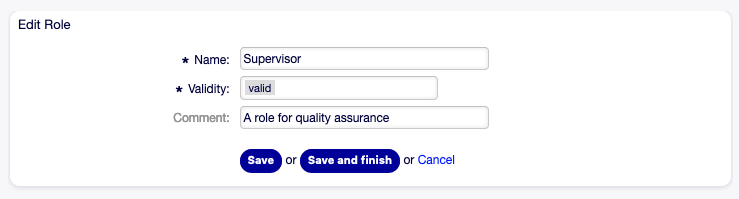
Edit Role Screen
Note
If several roles are added to the system, use the filter box to find a particular role by just typing the name to filter.
Import / Export
To export one or more roles:
Click on the Roles Export button on the left.
Select the roles you want to export.
Click on the Export button.

Role Export Screen
To import a set of roles:
Select a file using the file picker in the Import / Export widget.
Optionally tick the Override existing entities checkbox.
Click on the Roles Import button.
Role Settings
The following settings are available when adding or editing this resource. The fields marked with an asterisk are mandatory.
- Name *
The name of this resource. Any type of characters can be entered to this field including uppercase letters and spaces. The name will be displayed in the overview table.
- Validity *
Set the validity of this resource. Each resource can be used in OTOBO only, if this field is set to valid. Setting this field to invalid or invalid-temporarily will disable the use of the resource.
- Comment
Add additional information to this resource. It is recommended to always fill this field as a description of the resource with a full sentence for better clarity, because the comment will be also displayed in the overview table.