Configuring CKEditor Plugins and Toolbar
With OTOBO 11.1, the package CK5-FullWindowMode has been integrated into the core. This enables to control the plugins and toolbar content and order of the CKEditor via system configuration.
As an example, this how-to describes the steps to disable the Strikethrough functionality.
0. Default State
With default settings, the CKEditor in the agent interface looks like this:
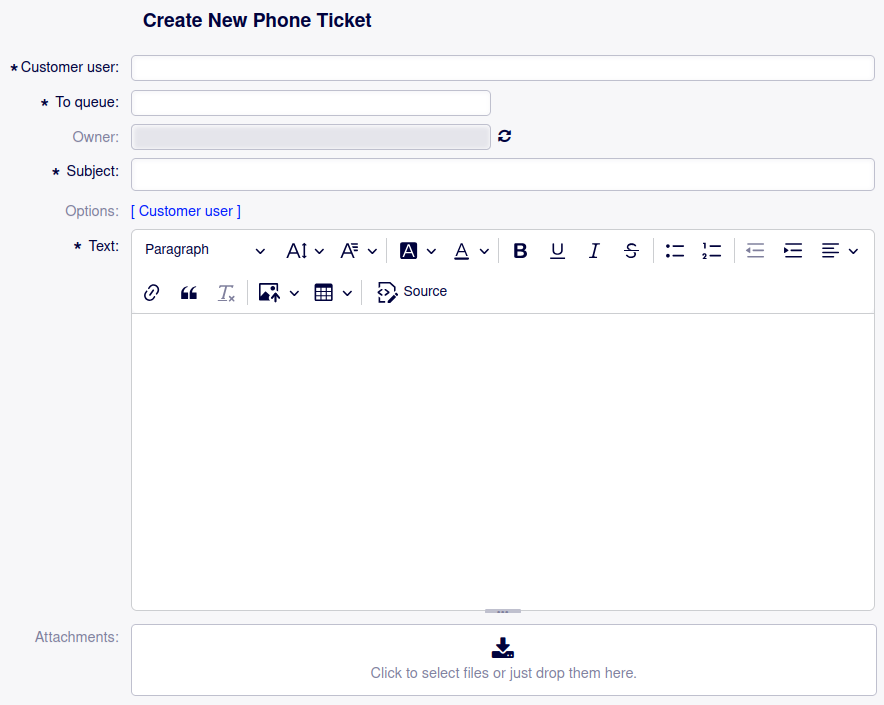
CKEditor in AgentTicketPhone with default settings
The Strikethrough button is available.
1. Activate the Enhanced Mode for the CKEditor Toolbar
For the subsequent steps to take effect, the enhanced mode for the CKEditor toolbar needs to be activated. This is done with the following steps:
Navigate to the system configuration in the admin interface
Navigate to the setting Frontend::RichText::EnhancedMode
Enable editing
Activate the setting by checking the checkbox
Save the change and deploy the setting
2. State with Enhanced Mode
With the enhanced mode activated, the CKEditor looks like this:
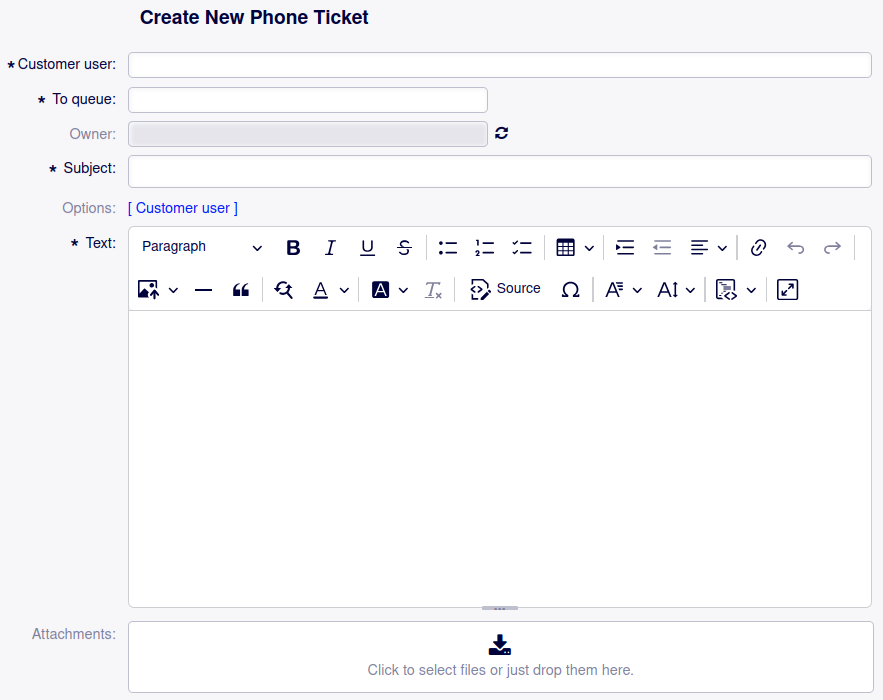
CKEditor in AgentTicketPhone with enhanced mode enabled
3. Change the Toolbar Configuration
The system configuration setting responsible for the CKEditor toolbar in the agent interface is the setting Frontend::EnhancedCKEditorToolbar.
It can be changed with the following steps:
Navigate to the system configuration in the admin interface
Navigate to the setting Frontend::EnhancedCKEditorToolbar
Enable editing
Remove the entry Strikethrough (fifth entry in the first block)
Save the change and deploy the setting
4. State with Change in Place
Having activated the changed system configuration setting, the CKEditor looks like this:
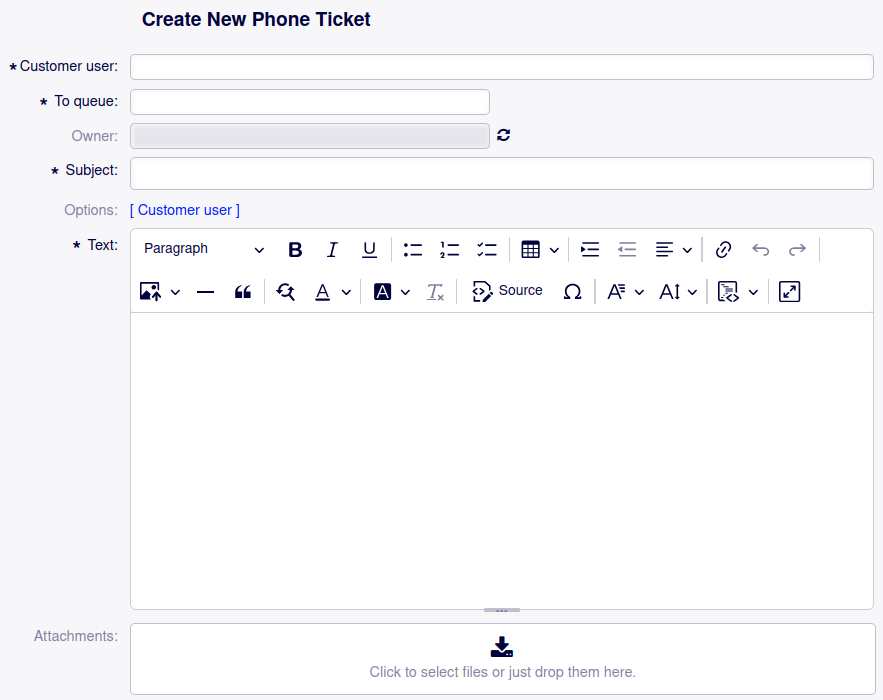
CKEditor in AgentTicketPhone with enhanced mode enabled and Strikethrough removed