Migrate Email OAuth2 from OTOBO 11.0 to 11.1

OTOBO 11.0.x requires the package MailAccount-OAuth2 to use OAuth2-based authentication for email fetching. This functionality is included in OTOBO 11.1.x, hence the framework does no longer require the package.

In order to update OTOBO 11.0.x to 11.1.x and transfer the OAuth2-settings from the package into the framework settings, the following steps are required.

Save Settings from System Configuration

If an OTOBO package is removed, its settings will be removed as well. In order to be able to migrate your configuration from the MailAccount-OAuth2 package to the framework, store the following settings.

  1. From the System Configuration setting OAuth2::MailAccount::Profiles###Custom1, store the following information:

    1. ClientID

    2. ClientSecret

    3. Name

    4. ProviderName

System Configuration Setting OAuth2::MailAccount::Profiles###Custom1

Fields from System Configuration that must be stored

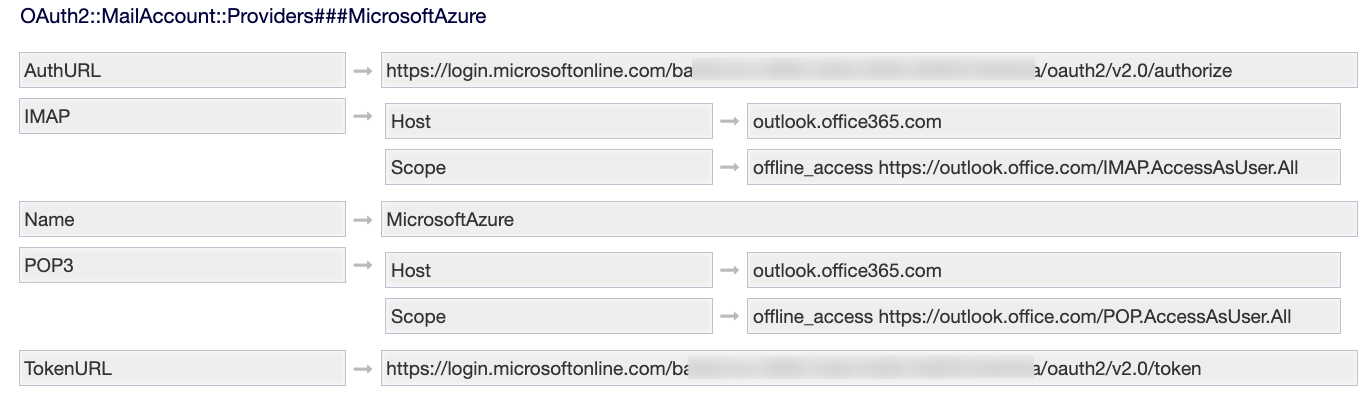
  1. From the setting OAuth2::MailAccount::Providers###MicrosoftAzure, store the follwing information:

    1. AuthURL

    2. TokenURL

System Configuration Setting OAuth2::MailAccount::Providers###MicrosoftAzure

Fields from System Configuration that must be stored

Create a Provider Profile

The Provider Profile defines the communication with your E-Mail provider.

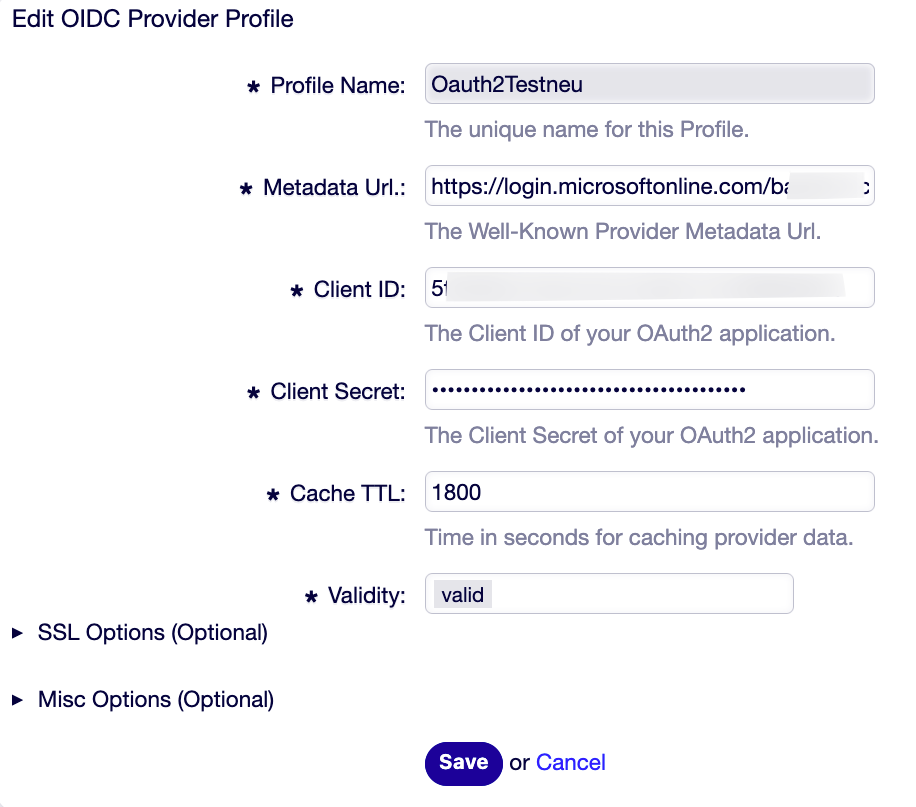
In the admin area, navigate to OIDC Profile Management and add a profile:

  1. Profile Name - Define a name for this profile

  2. Metadata Url - The Well-Known Provider Metadata Url.

  3. Client ID - from section “Save Settings from System Configuration” above

  4. Client Secret - section “Save Settings from System Configuration” above

Admin->OIDC Profile Management

Creating a new Profile in the OIDC Profile Management

Create a Functional Account

The Functional Account connects your PostMaster Mail Account to the Provider Profile.

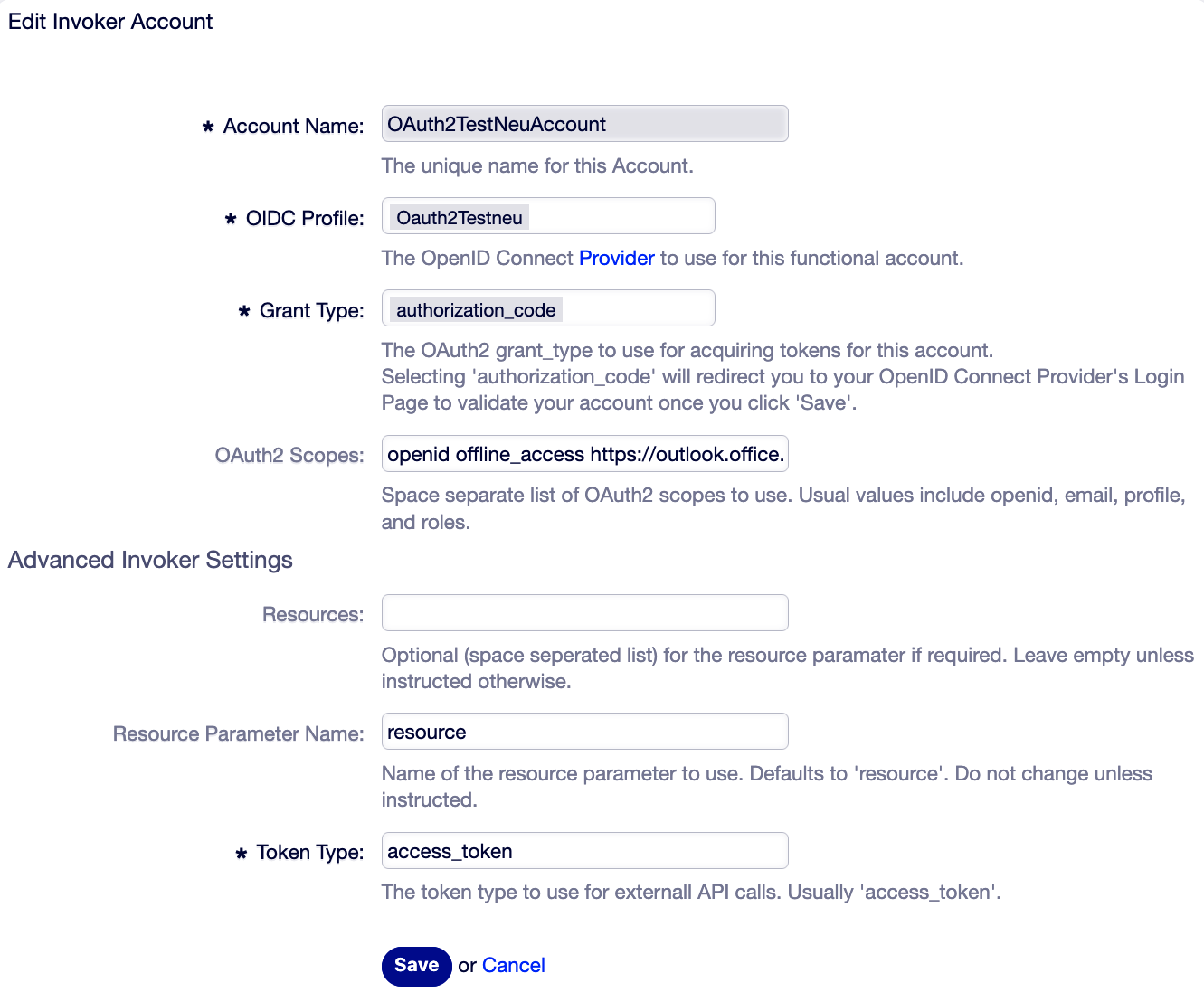
In the admin area, navigate to OAuth Functional Accounts and add an account:

  1. Account Name - Define a name for this account

  2. OIDC Profile - as defined in “Create a Provider Profile” above

  3. Grant Type - select authorization_code from the dropdown-list

  4. OAuth2 Scopes - openid offline_access

  5. Resource Parameter name - resource

  6. Token Type - access_token

Admin->OAuth Functional Account

Creating a new Account in OAuth Functional Account

  1. Click [Save] and login to your Microsoft account:

    • Email, phone or Skype

    • Password

    • 2FA

  2. In the overview of OIDC Functional Accounts, click the [Renew] button for the created account

  3. If everything is correct, the following message appears: “Token OAuth2TestNeuAccount updated!”

Check the Token Presence in the Database

After the steps above, the token must be in the database. If it is not present here, verify/repeat the steps done until here.

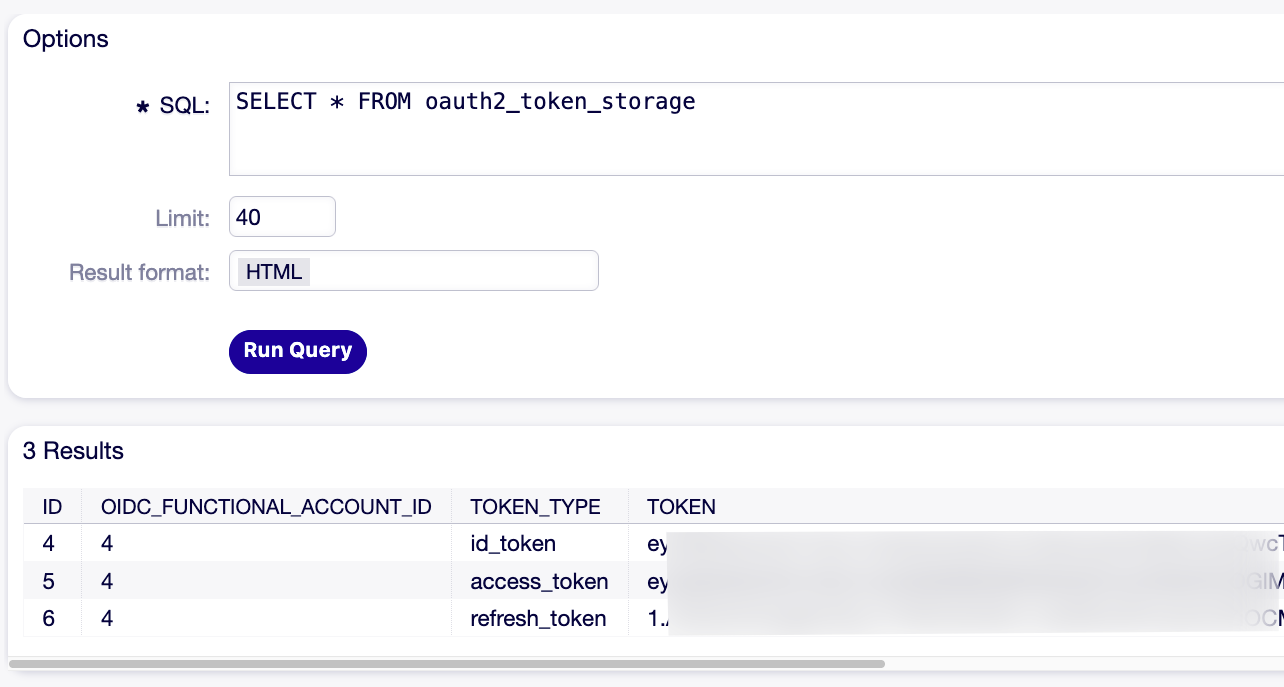
Navigate to Admin->SQL Box and verify the presence ot the token in the database with the following SQL-statement:

SELECT * FROM oauth2_token_storage
Admin->SQL Box

When the token is stored in the database, it will look like in the screenshot above

Update the PostMaster Mail Accounts

The PostMasterMail Account settings must be changed from the former package setting to a type understandable for OTOBO also after package removal.

Before the change, stop the daemon to prevent E-Mails from being fetched after the temporary change of the Type below.

  1. Stop the docker container for the daemon

Use the following shell-command:
docker compose stop daemon
  1. In the admin interface, navigate to PostMaster Mail Accounts

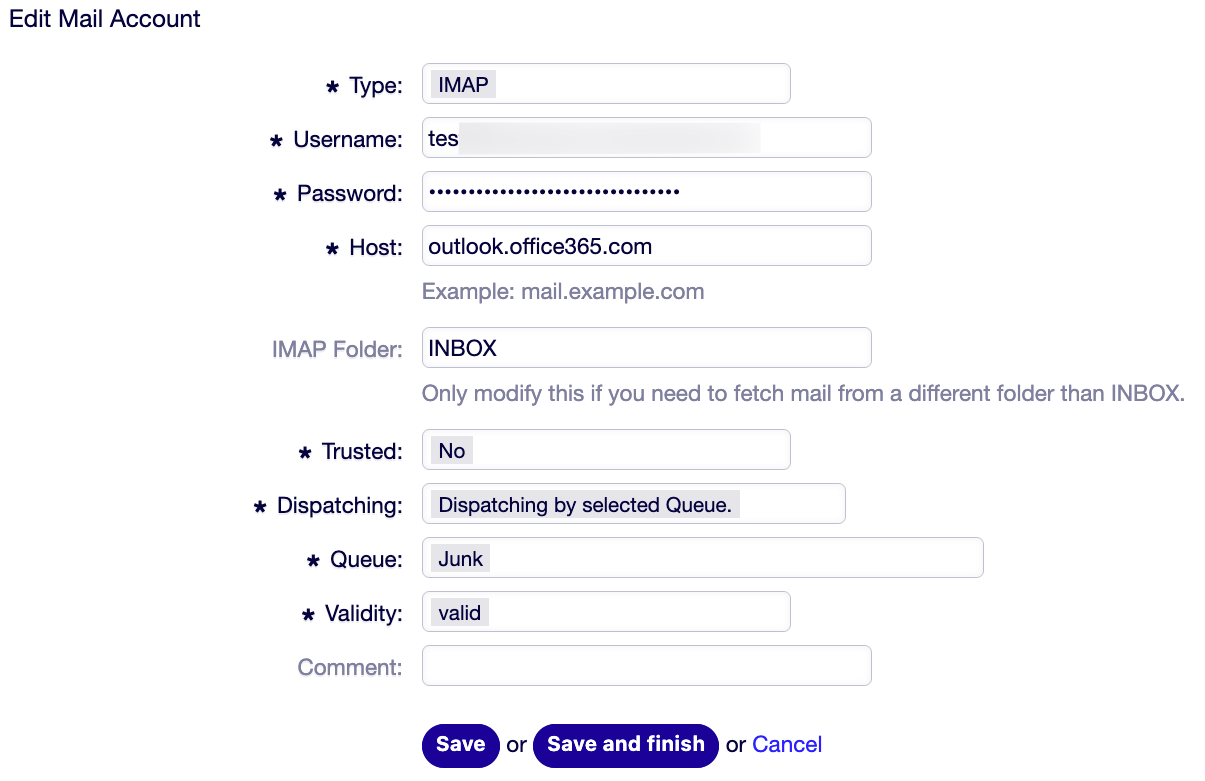
For each account, change the type from IMAPOAuth2 to IMAP (or from POP3OAuth2 to POP3) before removing the MailAccount-OAuth2-package.
Mail Account to change Type

Change “Type” on each Mail Account to “IMAP” or “POP3” (depending on protocol used)

Uninstall the no longer required Package

Uninstall the package MailAccount-OAuth2 with the Package Manager, as it will no longer be required with OTOBO 11.1.x.

Changes in Microsoft Azure

In Microsoft Azure, remove the old URI and keep only the new URI which is needed after the OTOBO upgrade:

https://<OTOBO address>/otobo/index.pl?Action=AdminOAuthTokenStore&Subaction=OAuth&code=(...)

Upgrade OTOBO from 11.0.x to 11.1.x

Follow the Documentation for upgrade guidance.

Clean Up PostMaster Mail Account Settings after Upgrading

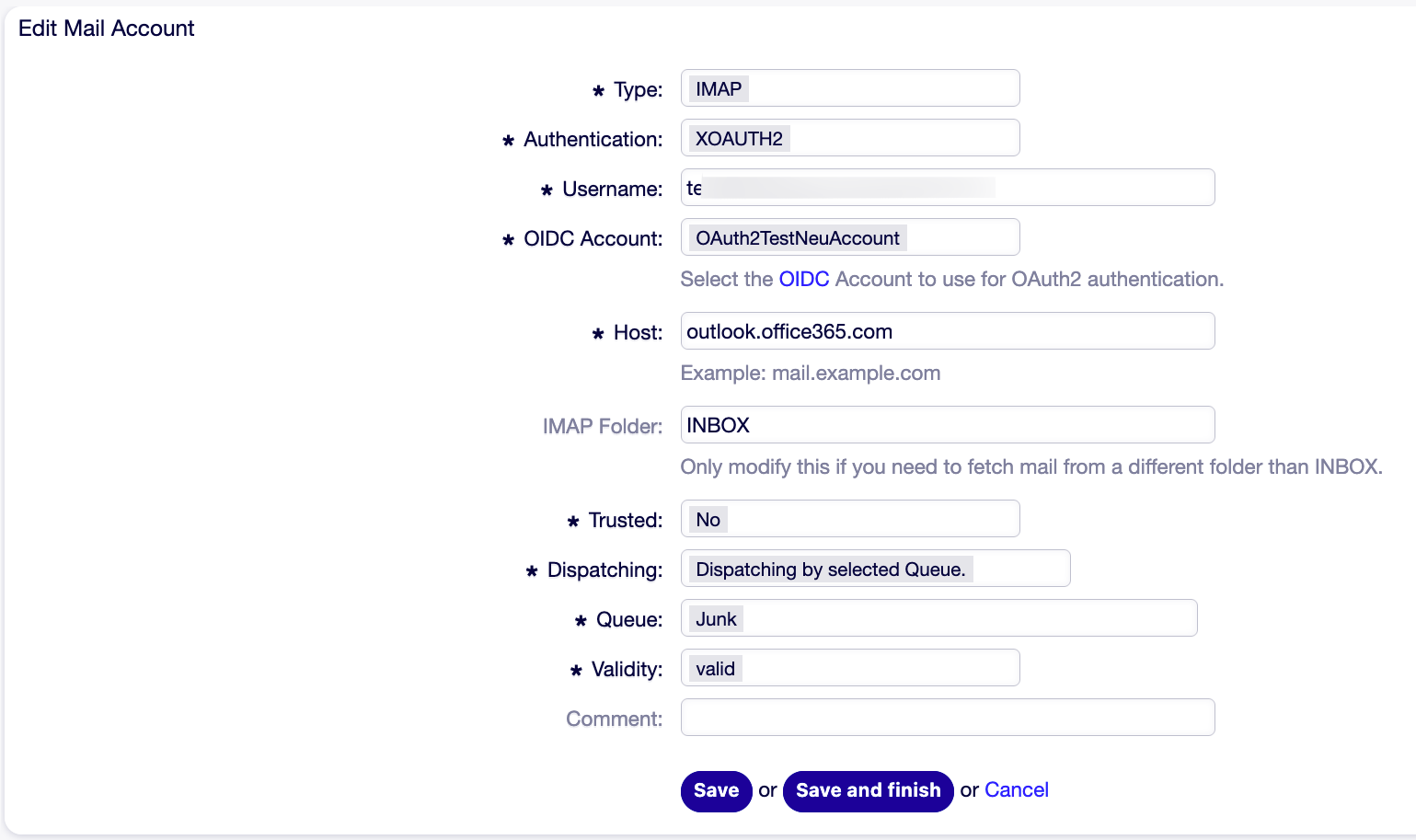
After the upgrade, change the authentication for all PostMaster Mail Accounts from Basic Auth to XOAUTH2 and select Username and OIDC Account needed now for OAuth2-Authentication:

Mail Account to change Authentication

Change “Authentication” on each Mail Account to “XOAUTH2”

Test after the Upgrade

In the admin interface, navigate to PostMaster Mail Accounts. For each account, click [Fetch mail] in the RUN NOW!-column

List of Mail Accounts

Click [Fetch mail] here.

The message “Finished” should appear on top of the screen, Additionally, the Communication Log must show the communication without errors:

List of Mail Accounts

An Error-free Communcation

Start the Daemon

Start the Daemon again to enable background activities. Use the following shell-command:

docker compose up -d daemon